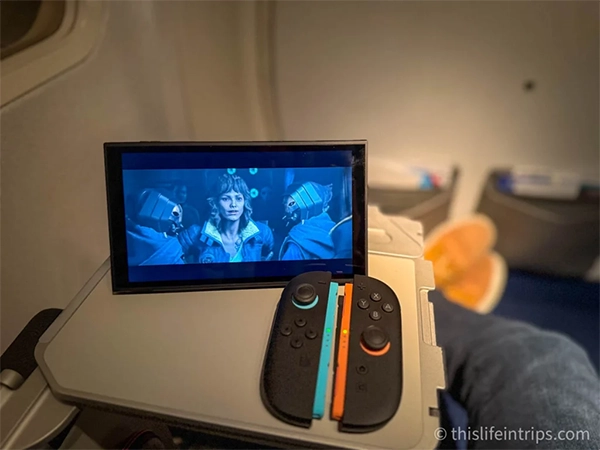
You’ve readied a device for a long trip, a week of evenings, most probably with no reliable Wi-Fi. The night before you plan to leave, the question is simple: will the microSD card hold up, and what can you do if it doesn’t
The answer mostly depends on how your device functions. Many smaller handhelds work from internal storage or utilize dedicated game cards. On those, a microSD slot may retain only extra content. Some devices, including many old-style handhelds and small builds, start their operating system directly from a removable card.
This guide prepares your device for offline travel so you can enjoy your trip with ease.
Start With the Manual Not the Card Label
Before you buy or pack anything, check what the device maker says about storage. Look for:
- Supported card types. microSDHC (up to 32GB) and microSDXC (over 32GB) are separate standards. Some older or simpler devices do not recognize SDXC cards.
- Maximum tested capacity. “Up to 256GB” in a manual is a better guide than a forum post saying a 1TB card worked once.
- File system requirements. Some systems expect FAT32. Customers format the card themselves when you write the official image.
- Tested or recommended cards. If the maker presents a list, start there.
If the manual doesn’t say, check the support page or firmware deployment notes. A card that fits the slot isn’t necessarily one the device fully supports.
Speed Markings Versus What Your Device Can Use
Card packaging carries a few markings: Speed Class (C10), UHS Speed Class (U1, U3), Video Speed Class (V30), and App Performance Class (A1, A2). The SD Association explains A1 and A2 as the ideal random read and write performance under predetermined test conditions. That is relevant for a handheld that boots from the card, because the system automatically loads small files such as menu artwork, configuration files, metadata, and saves.
A marking is a quantity calculated under test conditions. It doesn’t describe how your device will perform. A2 cards deliver more only when the host supports the features that allow it, and many relatively small devices don’t, so an A2 card may behave much like an A1 card. The device’s card interface, processor, operating system, and even heat inside the case can be the real limitation. A card that benchmarks well in a laptop reader may feel no different in the handheld.
The useful test is the device itself: boot it, move through menus, load a game, save, and restart. If you’re comparing options in the category of microSD storage for portable gaming devices, use the manual’s supported type and capacity to narrow the list, then confirm any card in your own handheld before you depend on it.
Separate the System From Your Games and Saves

It helps to think of the card in multiple layers:
1. The OS or firmware image. You can often download it again from the maker.
2. Games and apps. These can regularly be restored from your own backups.
3. Saves and settings. These are typically the only copies of your progress.
Some devices support a two-card setup, with one card for the system and another for content. If yours does, you can replace a failed system card without touching your library.
Leave free space when you choose a capacity. Updates may need room for temporary files, and a card filled to its limit leaves no margin for saves written during the trip.
Test Suspect Cards at Full Capacity
Counterfeit and defective cards can report a large capacity while physically storing much less. Once data passes the real limit, new writes silently override older ones, and you may not notice until saves expire. A quick format won’t reveal this.
If a card came from an unfamiliar seller or was valued well below the market, run a full write-and-verify test with a program such as H2testw on Windows or F3 on macOS and Linux. Test the card while it’s empty, before you record the image. A full test on a large card can take hours, so do it days before departure.
Back Up What You Own
Before you leave, copy your backup files, settings, and screenshots to a computer or a cloud storage that you control. Also save a copy of the official OS image and the flashing tool the maker recommends.
Keep backups of your saves and settings for retrieval. For games and software, use content you are supposed to use, and follow the device maker’s instructions for restoring it.
Update and Test Before You Leave
Install technological enhancements several days early, not at the arrival gate. An adjustment that fails halfway through is much easier to fix at home with a computer on hand.
After updating:
- Do a full cold boot, not only a wake from sleep.
- Open every game or app you plan to use offline.
- Save, quit, and reload to confirm saves are written correctly.
- Check if any feature expects a network connection.
- Put the manual, the OS image, and the flashing tool on your workstation or phone for offline access.
Eject Safely and Carry a Spare
Using a card while data is being written can corrupt files. Shut the handheld down fully before you remove the card. On a computer, use the operating system’s eject option. Don’t swap cards while the device is on.
A functional spare card is the most useful thing you can pack. Load it with a fresh copy of the OS image and recent saves, label it, and keep it in a small backup case separate from the handheld.
If several people are visiting with the same device, such as a family or club group, plan compatible spares together. Keep track of which card was tested with each handheld; a shared model number alone is no substitute for a quick boot and cache test on every device.
Fun Fact
Tiger Electronics’ Game.com (1997) was the first handheld console with a touchscreen and internet capability.
If the Card Fails Away From Home
If the handheld won’t boot or starts showing errors:
1. Power off and stop retrying. Repeated boot restarts can write more data to a failing card.
2. Reseat the card. Remove it, check the contacts for dirt, and insert it firmly.
3. Try your spare. If the device boots from the spare, the original storage card is probably the problem. If it doesn’t, suspect the device or its settings.
4. Don’t reformat the failed card if it represents the saves you care about. Set it aside and try recovering the files at home.
5. Reflash if you have a computer. Write the certified image to a known-good card with the maker’s equipment, then copy your saves back.
6. Buy carefully. If you have to replace a card on the road, buy from an established retailer and test the card before trusting it with saves.
If none of that works, contact the maker’s support team with the device number, firmware version, and a description of the error.
Preparing a microSD card for luggage takes a little time: check the manual, prove the card in the device, back up what you own, and pack a replacement. That’s usually enough to keep a dead card from ending a long trip’s festivities early.
FAQs
Q1) What to do if the card fails away from home?
Ans: The following are the steps you should take:
- Power off and stop retrying
- Try your spare device
- Don’t reformat the failed card
Q2) What happens when you eject the card while the files are being written?
Ans: Using a card while data is being written can damage files. Shut the handheld down fully before you remove the card. On a computer, use the operating system’s eject function. Don’t swap cards while the device is on.
Q3) What should I do before leaving?
Ans: Before you leave, duplicate your backup files, settings, and screenshots to a computer or a cloud storage that you control. Also save a copy of the official OS image and the flashing tool the maker provides.
What to do if the card fails away from home?
The following are the steps you should take:
- Power off and stop retrying
- Try your spare device
- Don’t reformat the failed card
What happens when you eject the card while the files are being written?
Using a card while data is being written can damage files. Shut the handheld down fully before you remove the card. On a computer, use the operating system’s eject function. Don’t swap cards while the device is on.
What should I do before leaving?
Before you leave, duplicate your backup files, settings, and screenshots to a computer or a cloud storage that you control. Also save a copy of the official OS image and the flashing tool the maker provides.